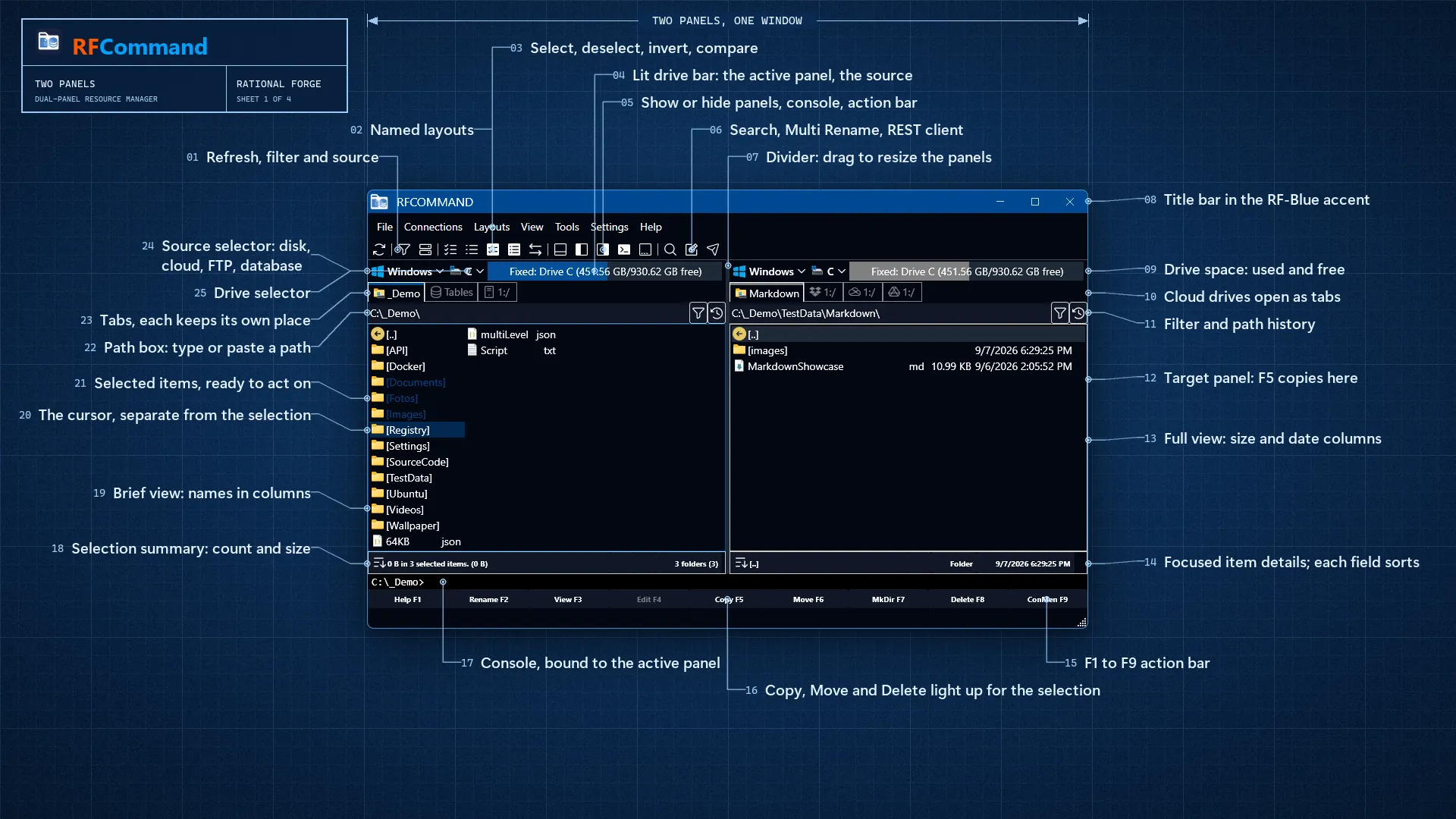
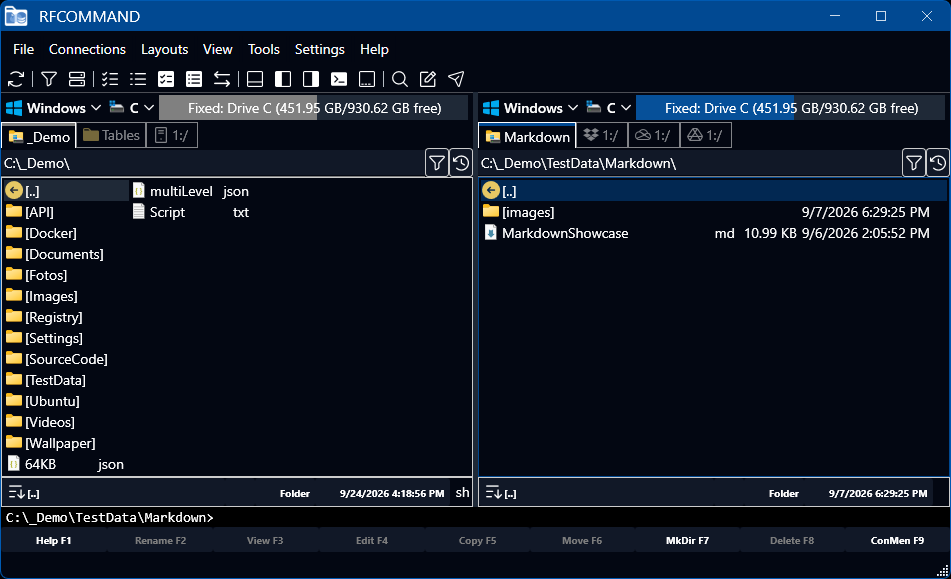
Why you would use tabs. Each
panel takes as many tabs as you like, and each remembers its own location and filter.
Keep your working folder, your archive, your server and your database open at once and
switch between them instead of navigating back and forth.
Ctrl+T opens a new tab on the same location and
Ctrl+W closes it. Right-click a tab for the rest: duplicate it,
send a copy to the other panel, move it, pin it so that no bulk close will touch it, or
close several at once.
A tab in the background never contacts its source until you click it. That matters: an
FTP server that is down or a database that is unreachable will not slow down or
interrupt your launch, it just sits there until you go to it.
Shaping the window. The
toolbar, either panel, the console and the action bar can each be shown or hidden.
Ctrl+O hides both panels so you see the console alone, and
Ctrl+F1 or Ctrl+F2 collapses the left or
right panel. Tabs can sit at the top, bottom, left or right. Drag the splitter between
the panels, or right-click it for a 30, 50 or 70 percent split.
When you have it the way you like, choose Save Layout from the Layouts menu, or have it
saved every time you exit. Your open tabs, their paths and the active panel are restored
the next time you launch.
Why you would use named layouts.
Most people work in more than one way. Keep a layout for each project, with its source
folder, its build output and its server already open in the right panels, and another
for presenting, with a large font and the right cloud drives in place. Switching
between them is one click, and tomorrow each one is exactly where you left it.
A layout is everything inside the window: the tabs in both panels and the folders they
show, servers and cloud drives included, each tab's view and sort order, the splitter,
which panels, console and bars are showing, and the look, meaning the font, icon size,
theme, accent, hidden files and language.
Open the Layouts menu, or press
Ctrl+Alt+L, and pick a layout to switch to it. The one
RFCommand starts in is called Default. New Layout asks for a name first and starts the
new layout from what is on screen, so name it, arrange it, then choose Save Layout.
Save Layout saves whichever layout is showing, Default included, and Manage Layouts
renames, deletes and reorders them.
A layout only changes when you save it. Switch away from one you have changed and
RFCommand asks whether to save it first, and going back to Default brings it back as you
last saved it. A layout's font, theme and other display settings apply only while it is
showing, so your own preferences are never changed by it, and the window stays where you
put it. RFCommand always starts in Default, and a tab on a server or cloud drive comes
back offering to connect rather than connecting on its own.