Manage all your resources
with one application

RFCommand is a file system and resource manager that puts you in control.
© 2026 Rational Forge
Our products are being carefully forged. We'll have something exceptional ready for you soon.
RFCommand is a file system and resource manager that puts you in control.






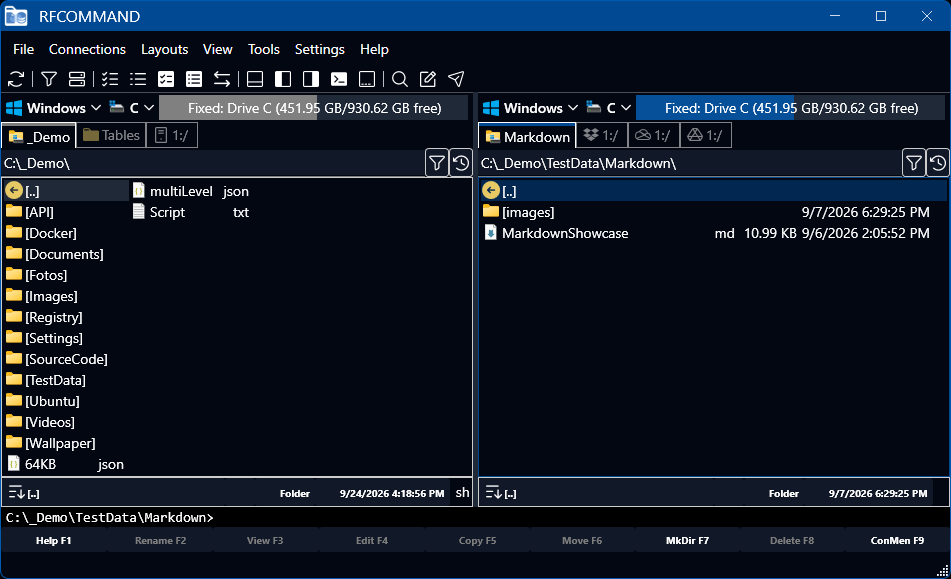
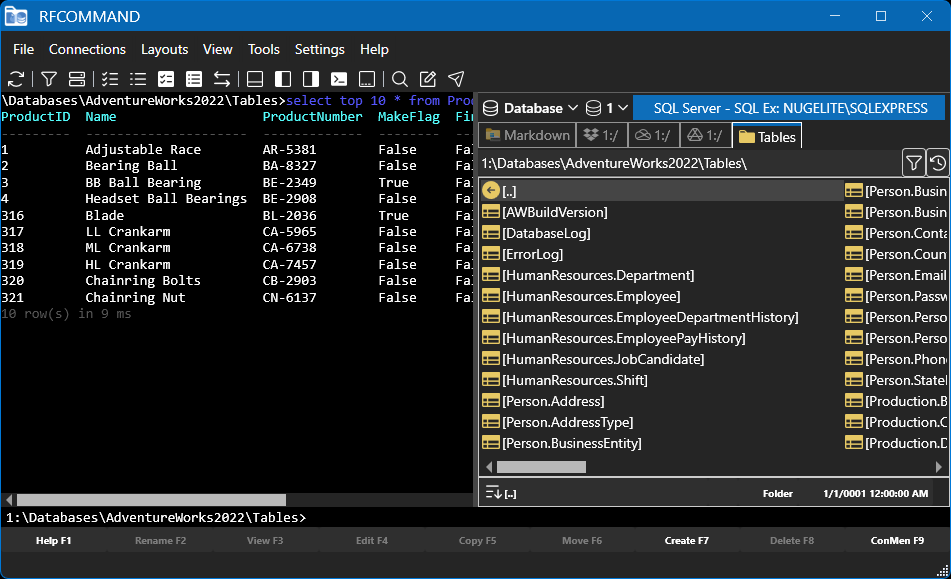
Many tools exist that work like Norton Commander, proving that two panels are the fastest way to work with files: F5 copies, F8 delete, and the source and target are always on screen together. RFCommand keeps all of that, then takes the same keys much further. Archives, disk images, FTP servers, OneDrive, Google Drive, Dropbox, and even live SQL Server, MySQL, PostgreSQL and SQLite databases open in the panels as ordinary folders.
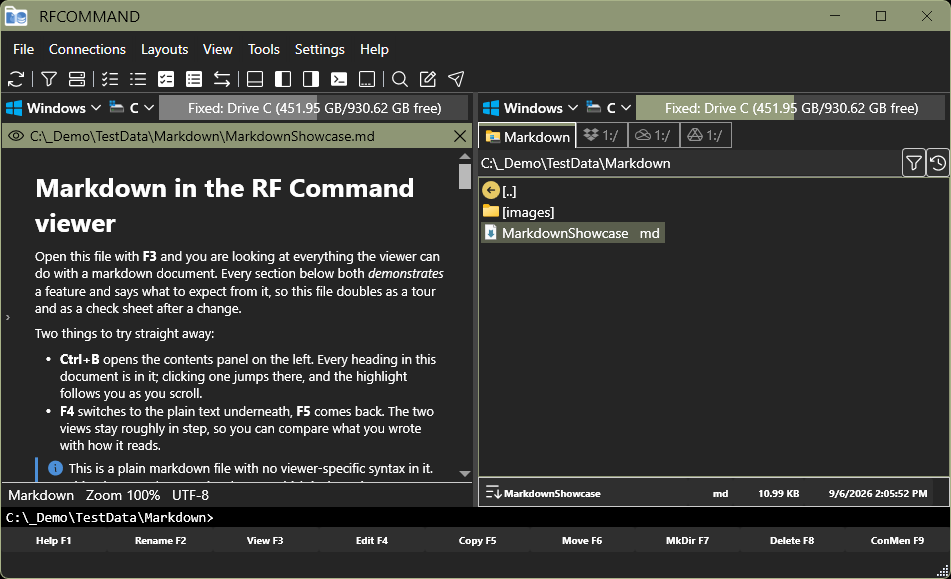
The rest of your day is built in too: a viewer for text, markdown, tables, pictures and video, an editor that saves straight back to a server or an archive, one search across every source, batch renaming by photo date or music tag, a web API client, and a real console that follows the active panel and runs SQL when you are inside a database. All of it looks and behaves like today's Windows, with Explorer's own icons and right-click menu, so there is less to switch between and less to learn.
Pick a category and see how it works.



Two hands. Two eyes. Two ears. Two halves of a brain, each doing something the other cannot. You were built to work with a pair of things, and you already know how much harder everything gets when you lose one of them.
So why manage your data through a single window, looking at one place at a time and holding the other in your head? RFCommand gives you both. Here and there, at once, always.
One window, one set of keys, and everything you need already on screen.

























Two panels means you can see where a file is and where you want it at the same moment. Copying is easy, and both the source and target locations of your work are visible all the time.
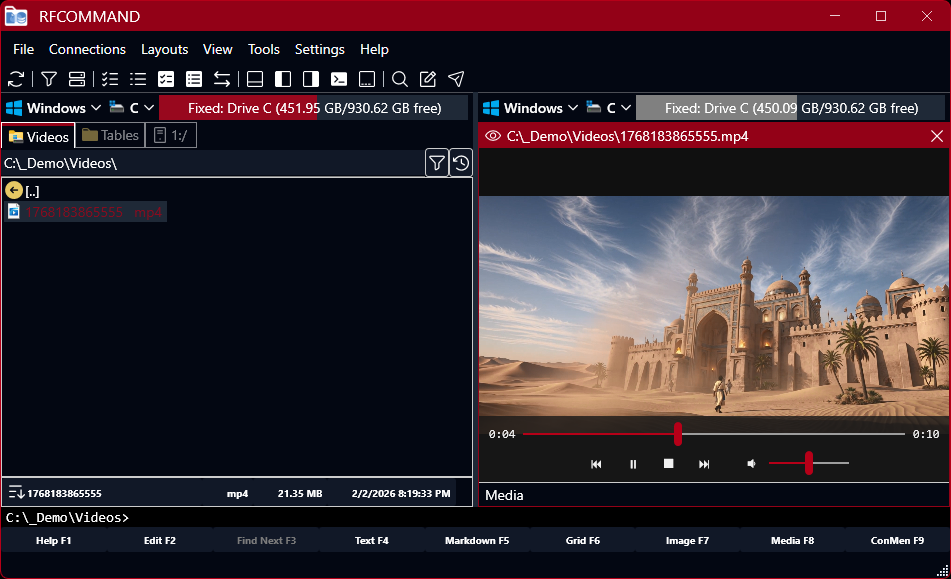
Quick View turns the other panel into a live preview that follows your cursor. Text, tables, pictures, video, sound. It previews folders and database tables too, which Explorer cannot do at all.
One search box that reaches your disks, your network, inside your archives, your servers, your cloud drives and your databases. One place to look, whatever you are looking for.


A zip, a disk image, an FTP server, your cloud drive and a live database all open with the same keys. Disk images open read-only, whether iso, vhd, vhdx, vmdk, vdi or xva, and FTP connects securely over FTPS.
A multi-gigabyte log opens straight away, because only the lines on screen are ever read. Tail mode then follows it as it is written, and a huge data file opens as a table the same way.
Press F5 to copy and you are done. Or rebind every key, pick your colours, choose your language, and shape the window exactly the way you work, with a saved layout for each job one click away. By default it is easy to use, and if you need more, then customize it.
RFCommand is a free public beta on the Microsoft Store, which installs it and keeps it up to date. The download page has the details and the system requirements.
Windows 10 version 2004 or later, 64-bit.
Bug reports and feature requests both go to our issue tracker, where you get a number you can follow.